geo-11 fix for Sonic Frontiers. Compatible with Hedge Mod Manager by using Ultimate ASI Loader.
Fixed
- Shadows.
- Lighting.
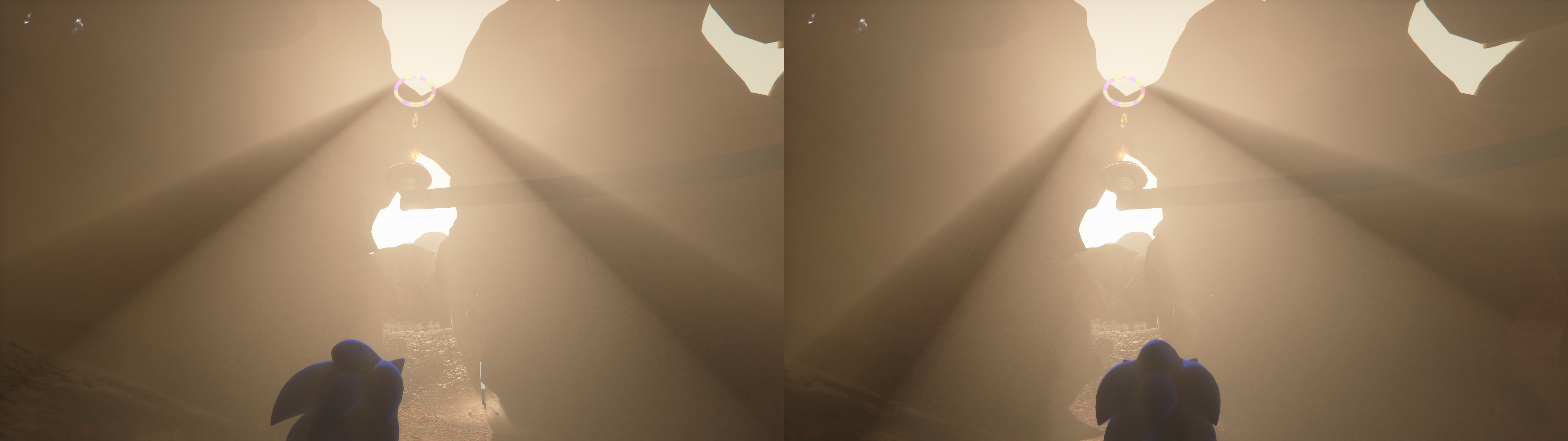
- Volumetric lighting.
- Lighting clipping.
- Geometry culling.
- Decals.
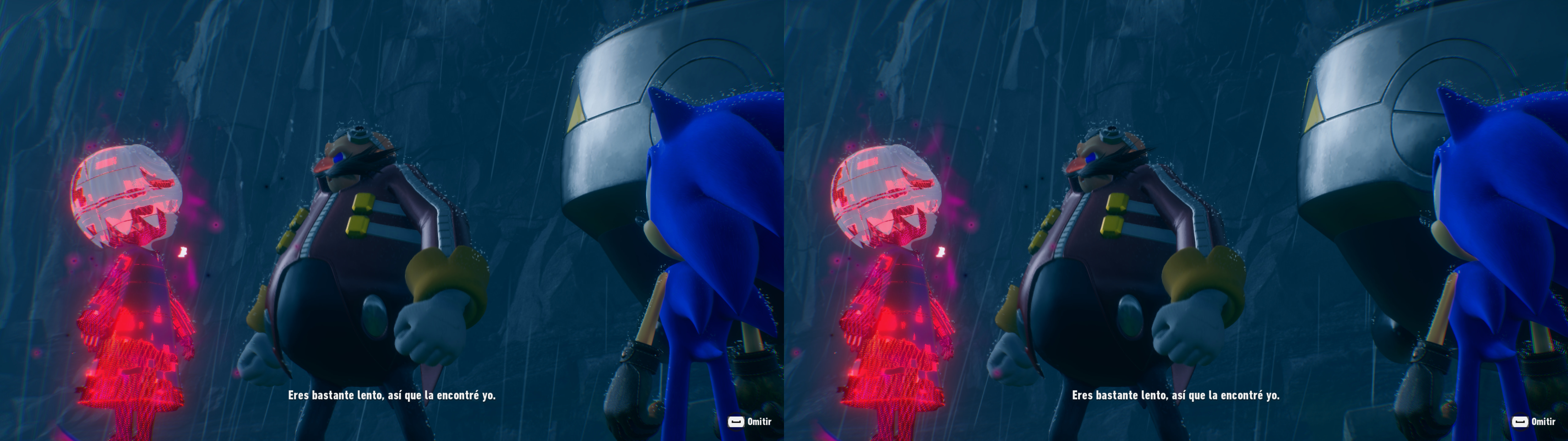
- Rain drops.
- Skyboxes, sun and moon.
- Screen space reflections.
- Radial blur and chromatic aberration.
- One eye particles and sparks, and other one eye issues.
- Realistic specular reflections.
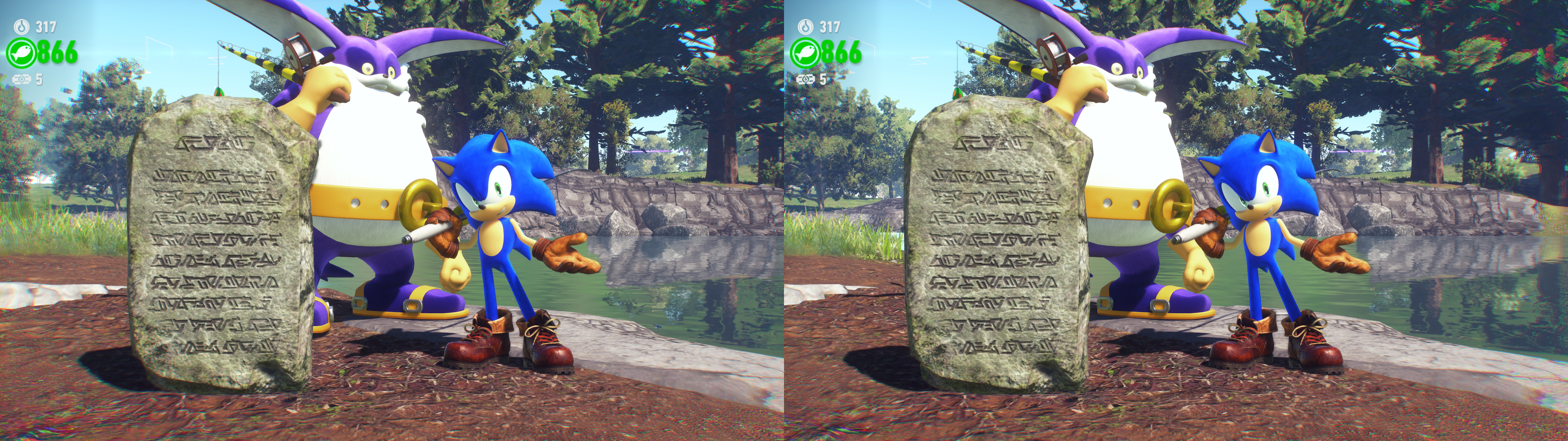
- Stereoized geometry that was 2D by normal means.
- Temporal anti-aliasing.
- Motion blur.
- HUD depth (not dynamic) for gameplay.
- Configured autoconvergence, also taking into account the special case of the final boss.
Installation-
geo-11 (with build v0.6.90): download
this file and extract its contents in the "
SonicFrontiers" folder, where "
SonicFrontiers.exe" is. Remember to edit "d3dxdm.ini" to change your "direct_mode" to the output you need. It's sbs by default. For 3D Vision monitors, "direct_mode = nvidia_dx11" works but "direct_mode = nvidia_dx9" doesn't trigger 3D Vision.
- Optional: if you want to use Hedge Mod Manager (which has some extra features), rename the "d3d11.dll" file from the fix to "d3d11.asi", use the 64 bits Ultimate ASI Loader dll as "dinput8.dll" and then use Hedge Mod Manager, which will create its own "d3d11.dll". Now both the fix and the mod manager will work at the same time.
- In the ingame options, preferably use borderless, which triggers 3D Vision as well as exclusive fullscreen. If you use a very low (under 720p) resolution, autoconvergence may not work.
Hotkeys (numbers aren't from the numpad)
- F1: convergence presets (1, 2, 4). 4 by default if autoconvergence is disabled. This key won't work unless "dm_auto_convergence" is set to 0 in "d3dxdm.ini".
- F2: HUD depth presets (0%, 25%, 50%, 60%, 75%, 100%). By default 60% depth in gameplay, and forcibly 0% in menus and cutscenes.
- F3: chromatic aberration toggle. Disabled by default.
- F4: depth of field toggle. Not disabled by default.
- F5: vignette toggle. Disabled by default.
- 0: FXAA toggle. Not disabled by default. I made this hotkey because some effects won't be used by the game unless you use FXAA or TAA (like desert heatwaves and underwater waves). With this key you can have no AA and those effects at the same time. However, this key also disables chromatic aberration and vignette as a side effect.
If you liked the fix and want to contribute for more future fixes, you can donate to this PayPal account: masterotakusuko@gmail.com




Comments
Post a Comment