Pinned Post

Devil May Cry 5

3D Vision and geo-11 fix for Devil May Cry 5. Many thanks to everyone that helped with testing, fixing and counseling (Helifax, DarkStarSword, Schwing, Kaimasta, etc). Update (2023-02-14) : reenabled a fix that I disabled by accident. Fixed one shader related to interlaced mode. Update (2023-02-12) : added geo-11 fix. Fixed TAA (including the temporal part of reflections), motion blur and interlaced mode in a more proper way. Fixed volumetric lighting clipping. Configured autoconvergence. HUD adjustments. Fixed some other minor problems. Stereoized vignette (if you enable the effect). Update (2022-01-11) : fixed TAA and interlaced mode, fixed lens flares, improved radial blur, stereoized more specular reflections, optimized regexes, put the clipping area of volumetric lighting to full depth (especially helps cutscenes), fixed more haloing problems, and fixed some fog related to volumetric lighting. Update (2019-12-21) : fixed volumetric lighting. Some glass now has realistic depth for ...
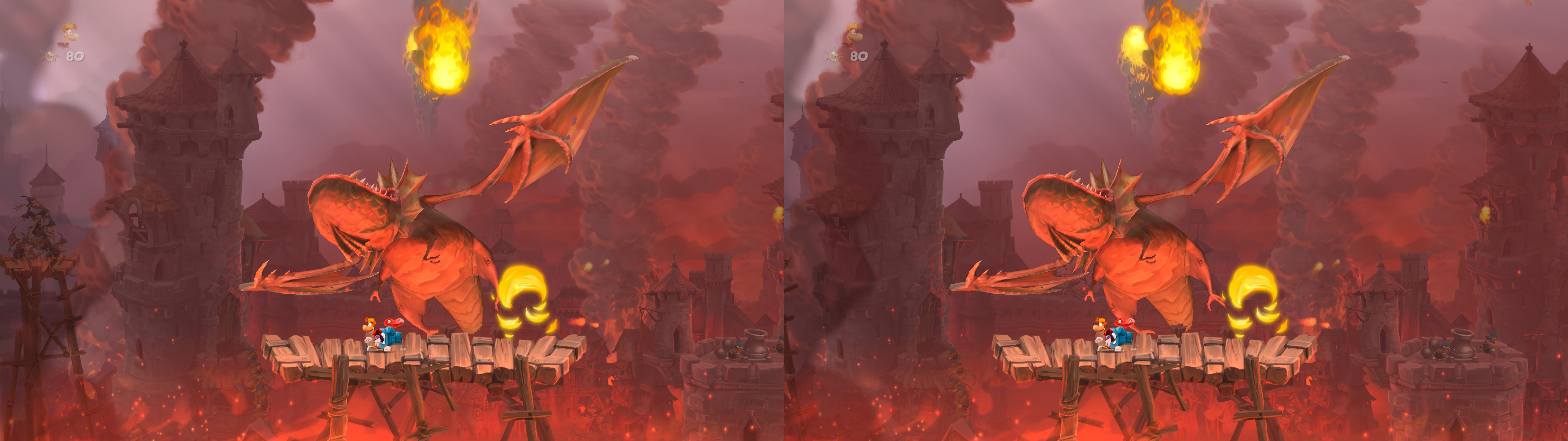
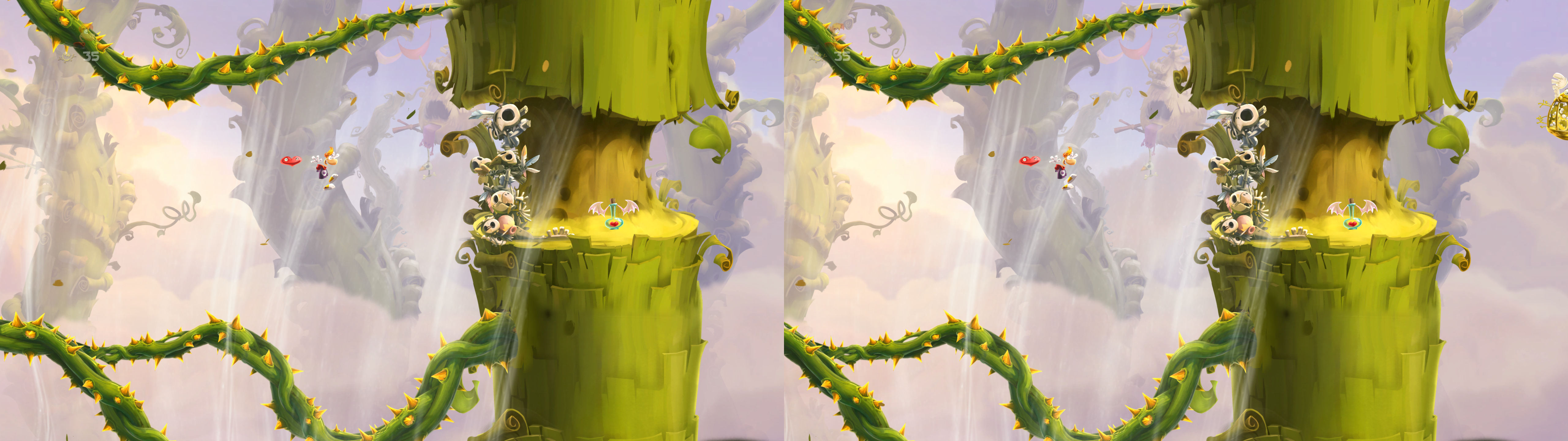
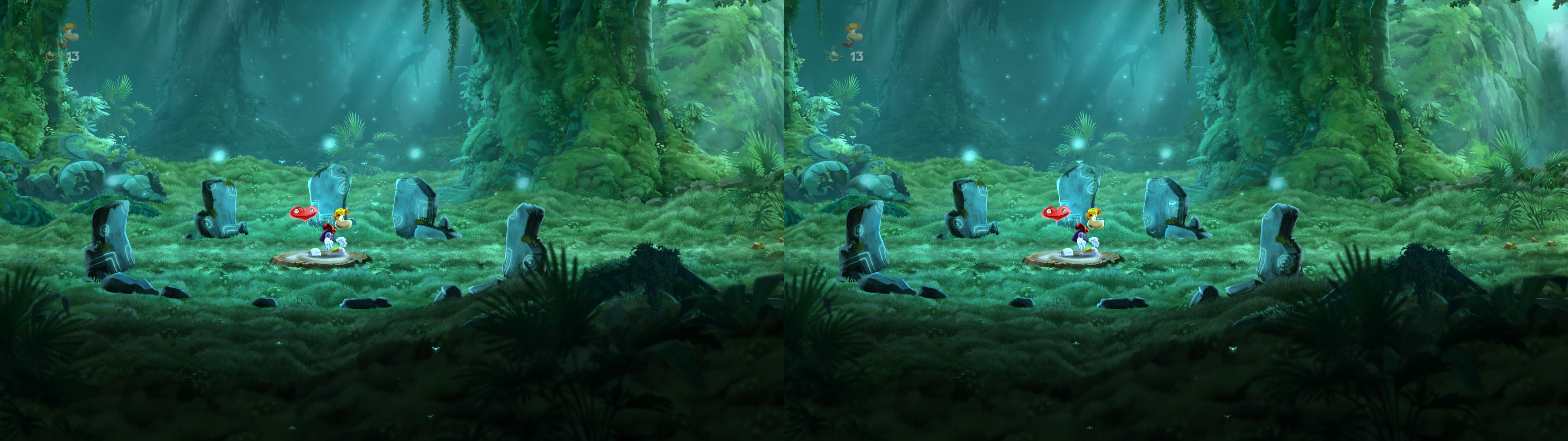
Rayman Legends [DX11]


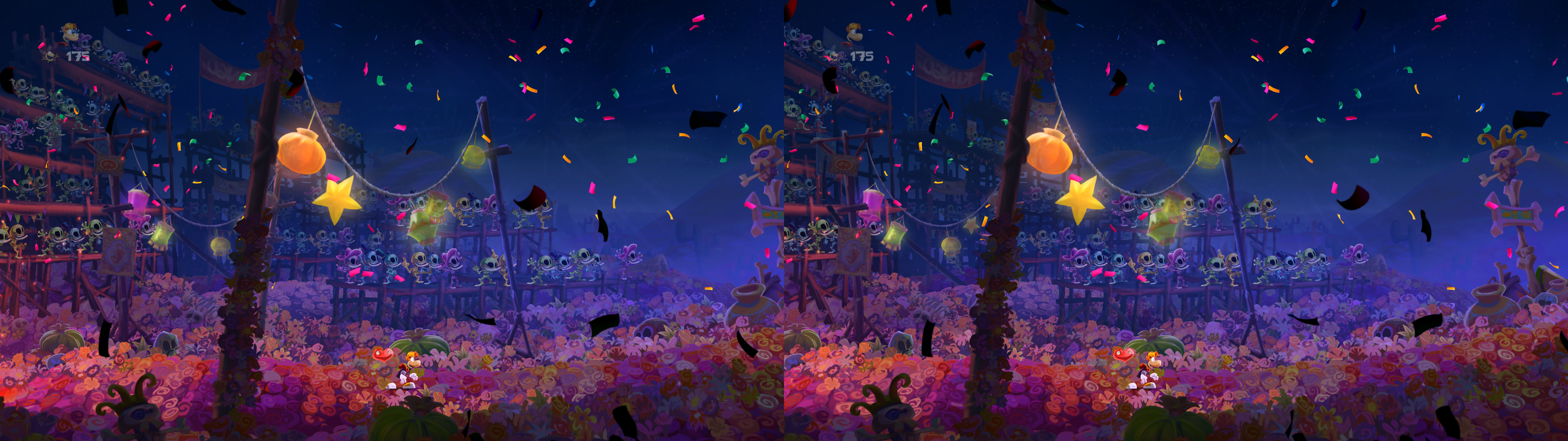
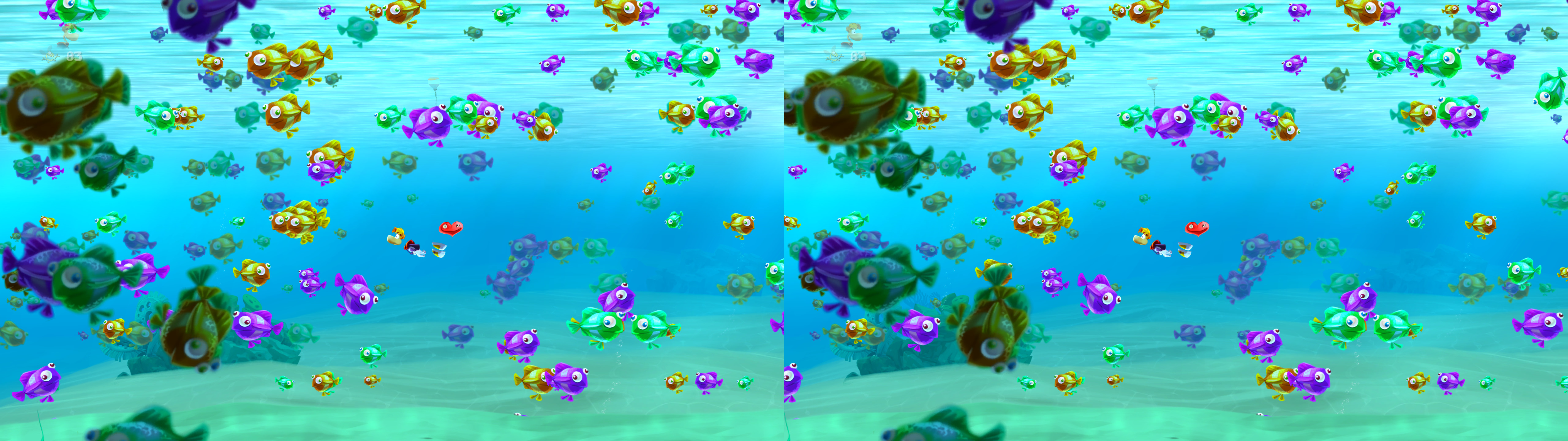
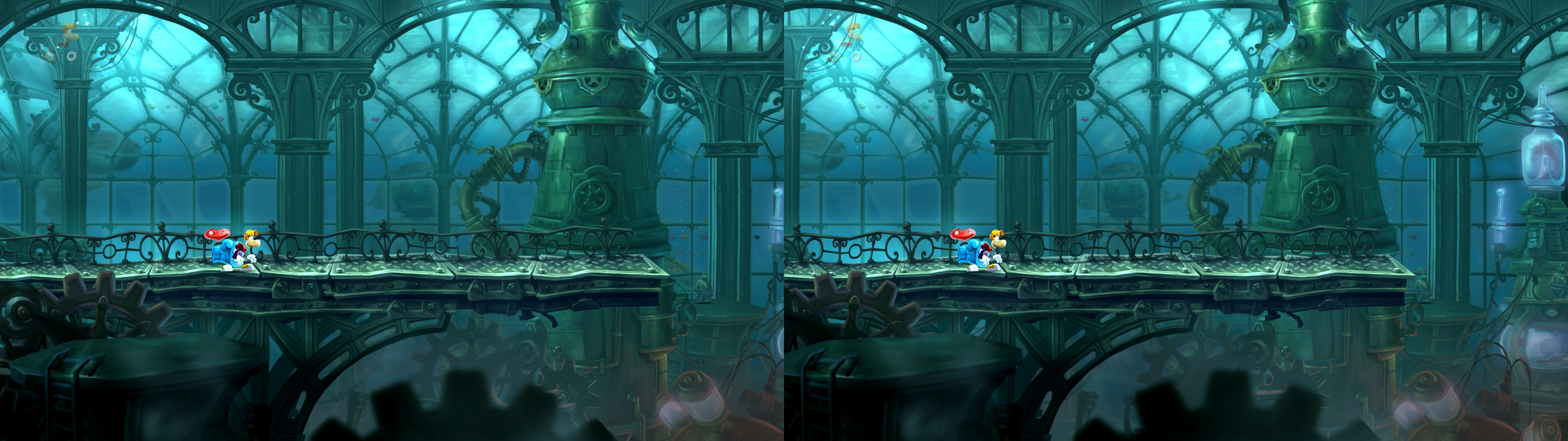
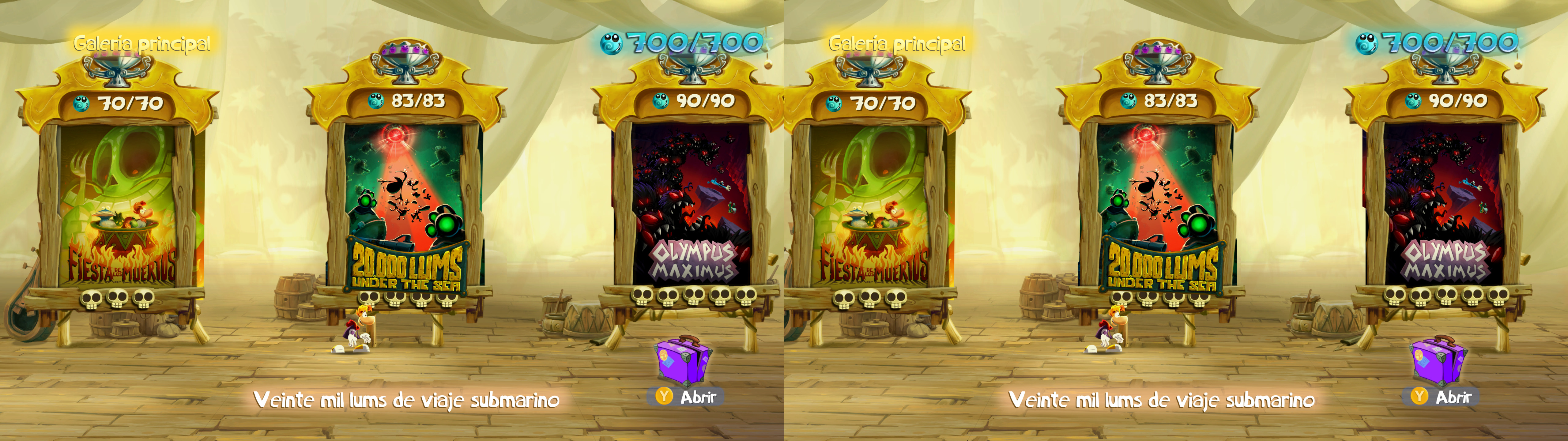
geo-11 fix for Rayman Legends. It requires dgVoodoo to wrap DX9 to DX11. If you're looking for the original DX9 fix, you can find it here.


Fixed
  • Haloing issues.
  • Scissor clipping of elements that had problems with it. Only a partial fix due to conflicts and inconsistencies. You may see minor "overflow" issues with some graphics, like forks in a specific Rayman Origins level.
  • Lighting.
  • Radial blur.


Installation
  • geo-11 (with build v0.6.58): download this file and extract its contents in the "Rayman Legends" folder, where "Rayman Legends.exe" is. Remember to edit "d3dxdm.ini" to change your "direct_mode" to the output you need. It's sbs by default. For 3D Vision monitors, use "direct_mode = nvidia_dx11" in "d3dxdm.ini".
  • Download the latest version of dgVoodoo. Confirmed latest working version is v2.79.2. Just in case shaders change, stick to that version.
  • Copy the "D3D9.dll" file from the "MS\x86" dgVoodoo folder to the "Rayman Legends" folder.
  • Open "dgVoodooCpl.exe" to configure the game like this (you decide how much VRAM you want to reserve. Probably 1 or 2 GB is enough):


  • After applying the settings, it should have generated a "dgVoodoo.conf" file in the "Rayman Legends" folder.
  • Launch the game and play in fullscreen.


Hotkeys
  • F1 or XB_RIGHT_THUMB: convergence presets (5, 8, 15). 8 by default. For some distorted screen effects of the last world, 15 convergence is the best.
  • F2 or XB_LEFT_THUMB: HUD depth presets (0%, 20%, 35%, 59.375%, 80%, 100%). 35% depth by default.


If you liked the fix and want to contribute for more future fixes, you can donate to this PayPal account: masterotakusuko@gmail.com
Or you can join my Patreon: https://www.patreon.com/masterotaku

Comments

Popular Posts