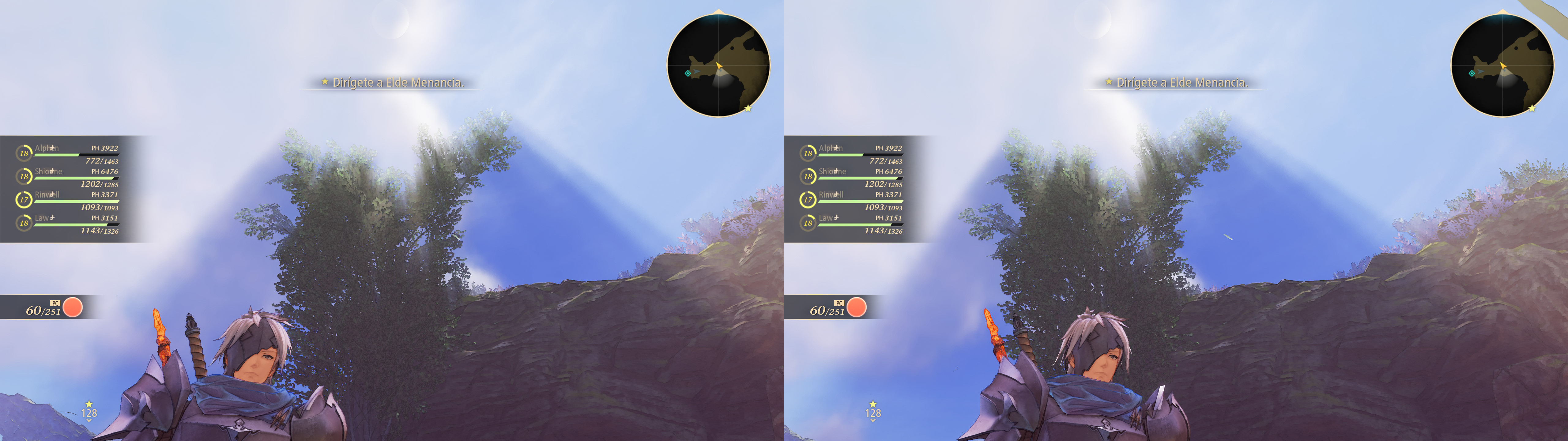
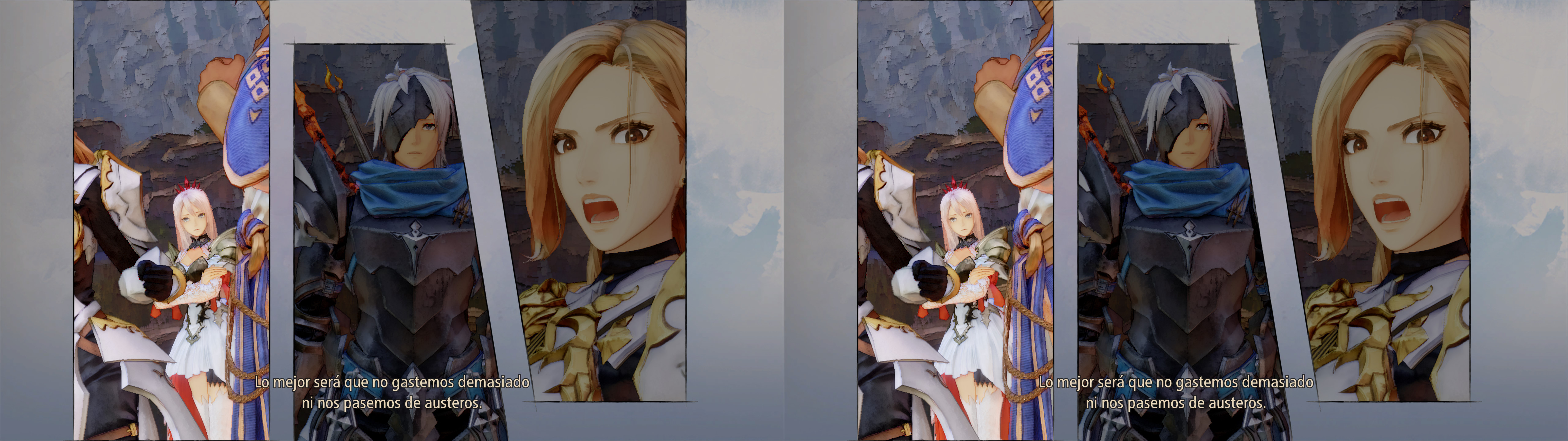

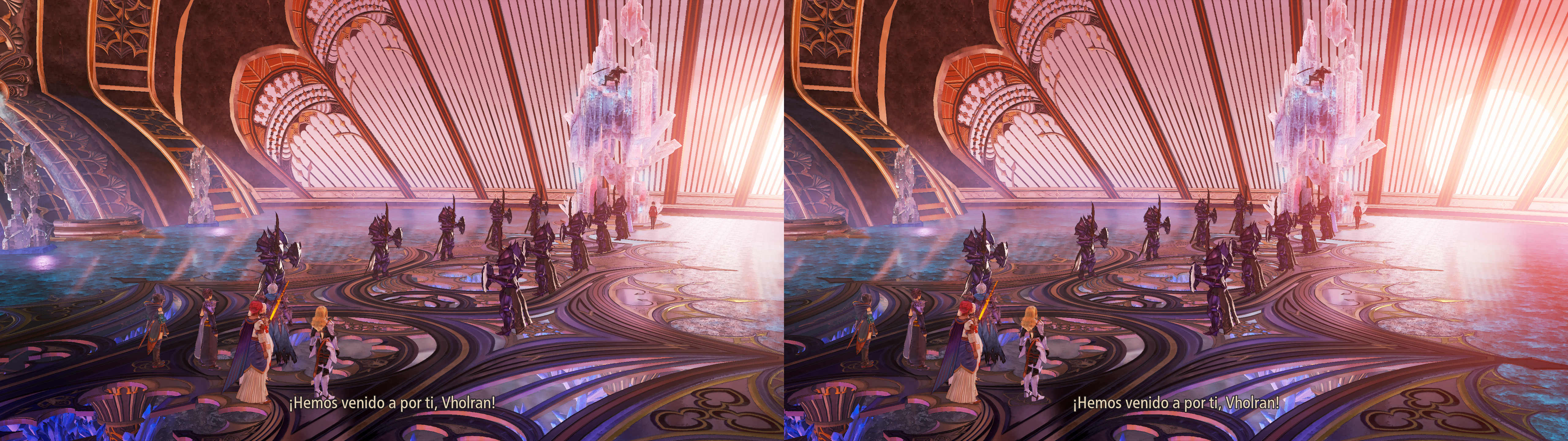

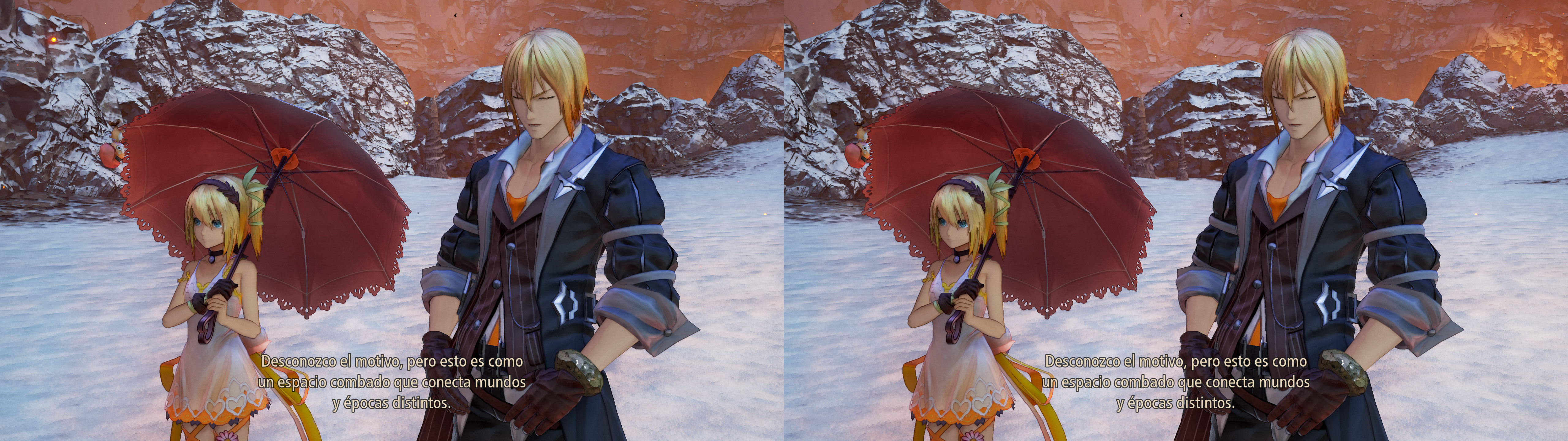
3D Vision fix for Tales of Arise. This uses the UE4 universal fix 8.15 as the base (thanks to currently Losti and originally DHR). All graphics options are safe to use.
Fixed (compared to the universal fix)
- Clouds.
- Lighting.
- Decals.
- Volumetric lighting.
- Screen space reflections.
- Screen space shadows.
- Light shafts.
- Radial blur in battles and cutscenes.
- Lighting problems related to special effects and other things.
- Stereoized parallax occlusion mapping.
- Some more realistic specular reflections.
- Temporal anti-aliasing.
Installation
- Download this file and extract its contents in the "Tales of Arise\Arise\Binaries\Win64" folder, where "Tales of Arise.exe" is.
- Run the game and let it overwrite the Nvidia profile when asked. Make sure you play in exclusive fullscreen.
Hotkeys (numbers aren't from the numpad)
- Lots of them: hotkeys from the universal fix. You can enable the OSD by pressing F2. Especially important: "numpad +" to disable and enable autoconvergence (disabled by default) and "," and "." for static convergence presets. By default HUD is at 0% depth.
- F5: unlocked screen space reflections toggle. Not used by default. It removes a hard cut in screen reflections height, so you can see some more geometry reflected. Very small impact on GPU usage.
Recommendations
- Don't update the universal fix version. It will probably break the fix.
- Fixed HUD clipping when it's at static depth (I don't recommend putting it at depth).
Known issues
- Skits have random render target sizes and proportions. I didn't force any extra stereoization to them because it can break some effects. If you use ARISE-SDK to put them in high resolution, I think all of them will be in 2D. At original resolution, more than half are 3D. Not too important in any case.
Known issues
- Skits have random render target sizes and proportions. I didn't force any extra stereoization to them because it can break some effects. If you use ARISE-SDK to put them in high resolution, I think all of them will be in 2D. At original resolution, more than half are 3D. Not too important in any case.
- Radial blur, at the split second of triggering a battle (frozen loading screen), is unfixed, because I didn't find a way to hunt the shader.
- If you use universal fix keys to increase the depth of the HUD, it has adverse effects in menus, especially the one where you unlock skills (it goes over 100% effective stereoization). So I recommend leaving the HUD at screen depth.
Installation
- Download this file and extract its contents in the "Tales of Arise\Arise\Binaries\Win64" folder, where "Tales of Arise.exe" is.
- Run the game and let it overwrite the Nvidia profile when asked. Make sure you play in exclusive fullscreen.
Hotkeys (numbers aren't from the numpad)
- Lots of them: hotkeys from the universal fix. You can enable the OSD by pressing F2. Especially important: "numpad +" to disable and enable autoconvergence (disabled by default) and "," and "." for static convergence presets. By default HUD is at 0% depth.
- F5: unlocked screen space reflections toggle. Not used by default. It removes a hard cut in screen reflections height, so you can see some more geometry reflected. Very small impact on GPU usage.
- F6: battle vignette toggle. Disabled by default. It removes the vignette effect of the HUD during battle, which I found distracting and too dark.
- 8: sharpening toggle. Disabled by default. The ARISE-SDK mod has a sharpening option, but it doesn't include characters and NPCs. My key affects everything.
- 9: chromatic aberration and barrel distortion toggle. Disabled by default. The ARISE-SDK mod has a chromatic aberration disabling option, which does the same as this.
- 0: cel shading toggle. Not disabled by default.
My custom hotkeys don't save their state this time when pressing F10, and they don't show any OSD message.
Recommendations
- Don't update the universal fix version. It will probably break the fix.
- Don't enable motion blur in the options. It's very blurry, as it is in 2D too.
- If you need to tweak anything related to the universal fix, you should run "00_UE4-UniversalFix-2_Config.cmd".
- I recommend the ARISE-SDK mod, which lets you improve some effects, resolution of skits and other things. Be careful because even at default settings it will increase CPU usage because of some increased LOD and culling options. Read the "Arise-SDK.ini" file carefully and restore those options. I recommend disabling chromatic aberration and sharpening there, even if I also do it myself with the fix.
If you liked the fix and want to contribute for more future fixes, you can donate to this PayPal account: masterotakusuko@gmail.com
Or you can join my Patreon: https://www.patreon.com/masterotaku