3D Vision and geo-11 fix for OCTOPATH TRAVELER. This uses the UE4 universal fix 7.69 as the base (thanks to currently Losti and originally DHR).
Update (2022-12-03): updated geo-11 fix with build v0.6.90. Fixed temporal antialiasing (when enabled through Engine.ini) during convergence and separation transitions. Fixed one eye particles that were hard to detect.
Update (2022-11-12): added geo-11 fix. Fixed temporal antialiasing (when enabled through Engine.ini).
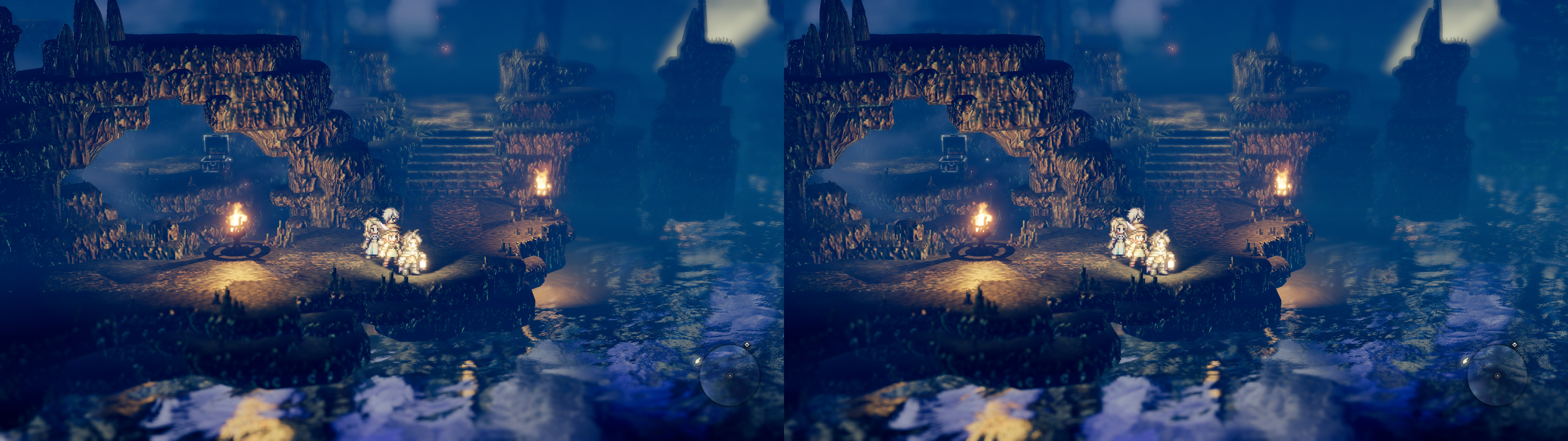
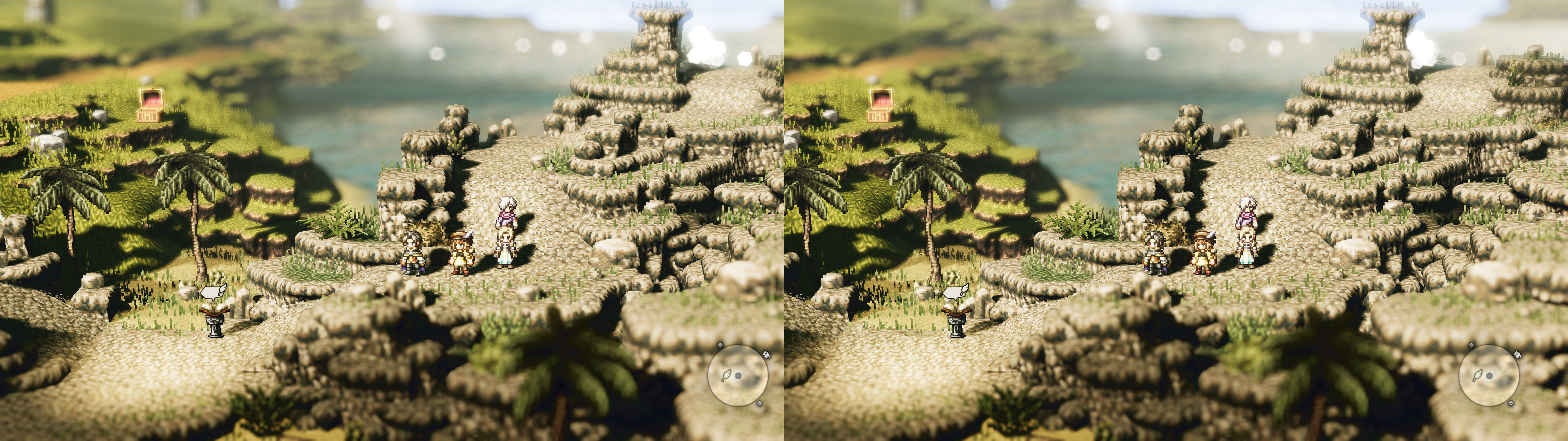
Fixed (compared to the universal fix)- Depth of field effect restored and stereoized, and with F4 hotkey to toggle it.
- Fixed transparency effects of geometry.
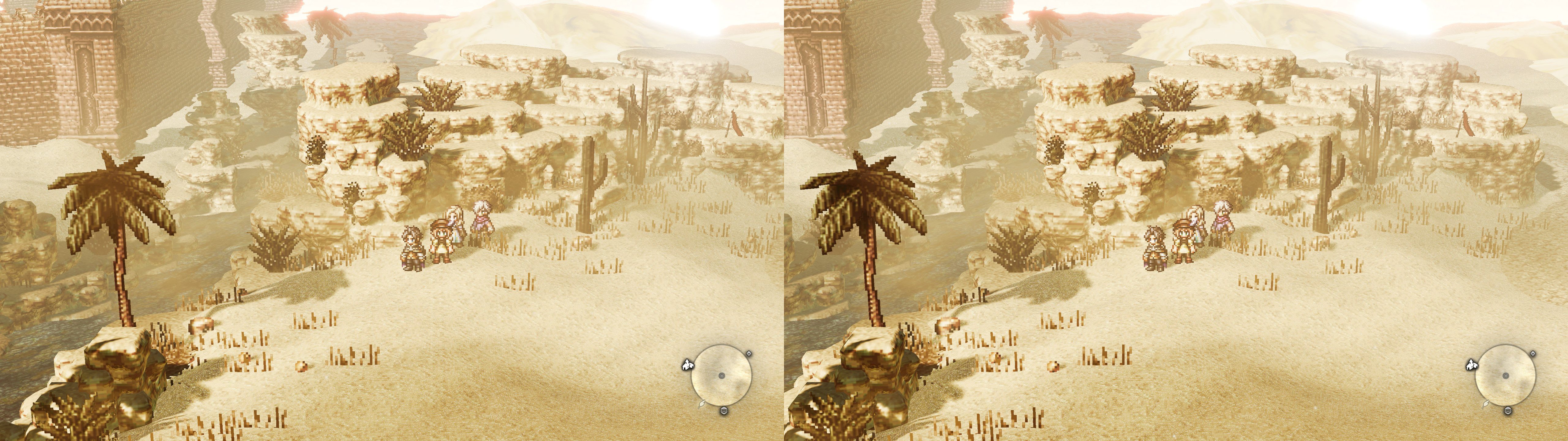
- Heatwave effect fixed (seen in desert areas).
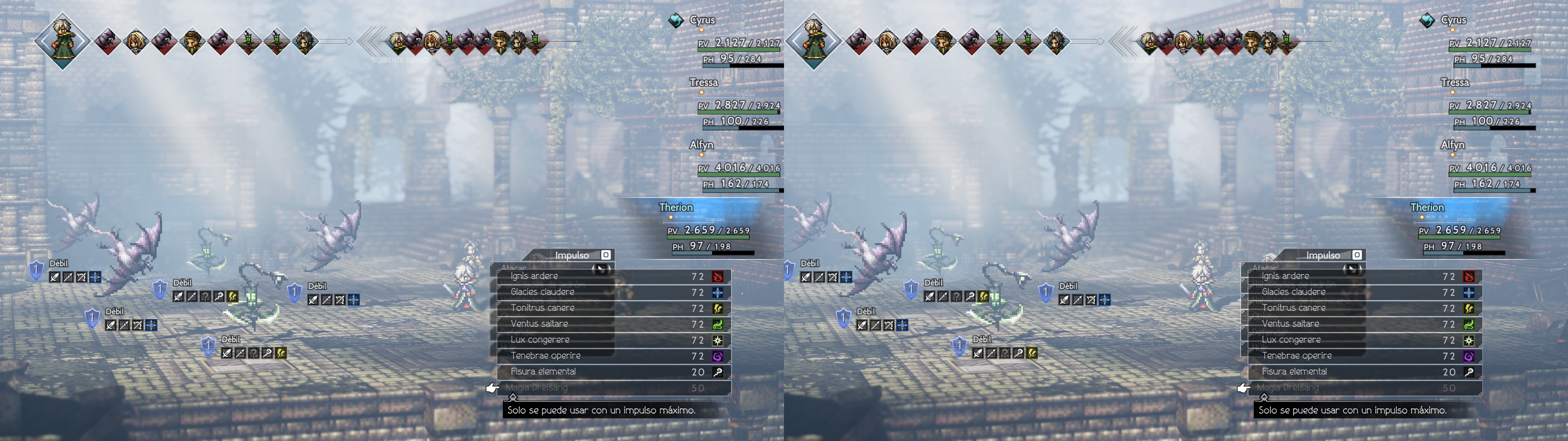
- Fixed HUD clipping when it's at depth.
- Temporal antialiasing.
Installation-
geo-11 (newer, with build v0.6.90): download
this file and extract its contents in the "
OCTOPATH TRAVELER\Octopath_Traveler\Binaries\Win64" folder, where "
Octopath_Traveler-Win64-Shipping.exe" is. Remember to edit "d3dxdm.ini" to change your "direct_mode" to the output you need.
- 3D Vision (older): download this file and extract its contents in the "OCTOPATH TRAVELER\Octopath_Traveler\Binaries\Win64" folder, where "Octopath_Traveler-Win64-Shipping.exe" is.- Run the game and let it overwrite the Nvidia profile when asked. Make sure you play in exclusive fullscreen.
Hotkeys (numbers aren't from the numpad)-
8 and 9: static HUD depth backwards and forwards. By default HUD is at 30% depth.
-
0: depth of field toggle. Not disabled by default. Disabling this effect can free a lot of GPU usage.
Recommendations
- If you need to save some GPU usage without sacrificing resolution, disabling depth of field with the 0 key can be a good idea. There are some areas where it's noticeable that the effect was intended to be enabled, because you'll clearly see the far edge of the game map.
- To enable TAA (if you want it), which fixes shimmering problems, edit the "Engine.ini" file in "%USERPROFILE%\Documents\My Games\Octopath_Traveler\Config\WindowsNoEditor\" folder and only set "r.DefaultFeature.AntiAliasing=2" under "[SystemSettings]".
- Another option (better than the default FXAA) is doing the same but using "r.PostProcessAAQuality=0". It will disable all antialiasing.
If you liked the fix and want to contribute for more future fixes, you can donate to this PayPal account: masterotakusuko@gmail.com


Comments
Post a Comment