Pinned Post

Devil May Cry 5

3D Vision and geo-11 fix for Devil May Cry 5. Many thanks to everyone that helped with testing, fixing and counseling (Helifax, DarkStarSword, Schwing, Kaimasta, etc). Update (2023-02-14) : reenabled a fix that I disabled by accident. Fixed one shader related to interlaced mode. Update (2023-02-12) : added geo-11 fix. Fixed TAA (including the temporal part of reflections), motion blur and interlaced mode in a more proper way. Fixed volumetric lighting clipping. Configured autoconvergence. HUD adjustments. Fixed some other minor problems. Stereoized vignette (if you enable the effect). Update (2022-01-11) : fixed TAA and interlaced mode, fixed lens flares, improved radial blur, stereoized more specular reflections, optimized regexes, put the clipping area of volumetric lighting to full depth (especially helps cutscenes), fixed more haloing problems, and fixed some fog related to volumetric lighting. Update (2019-12-21) : fixed volumetric lighting. Some glass now has realistic depth for ...
Disgaea 2 PC [OpenGL]


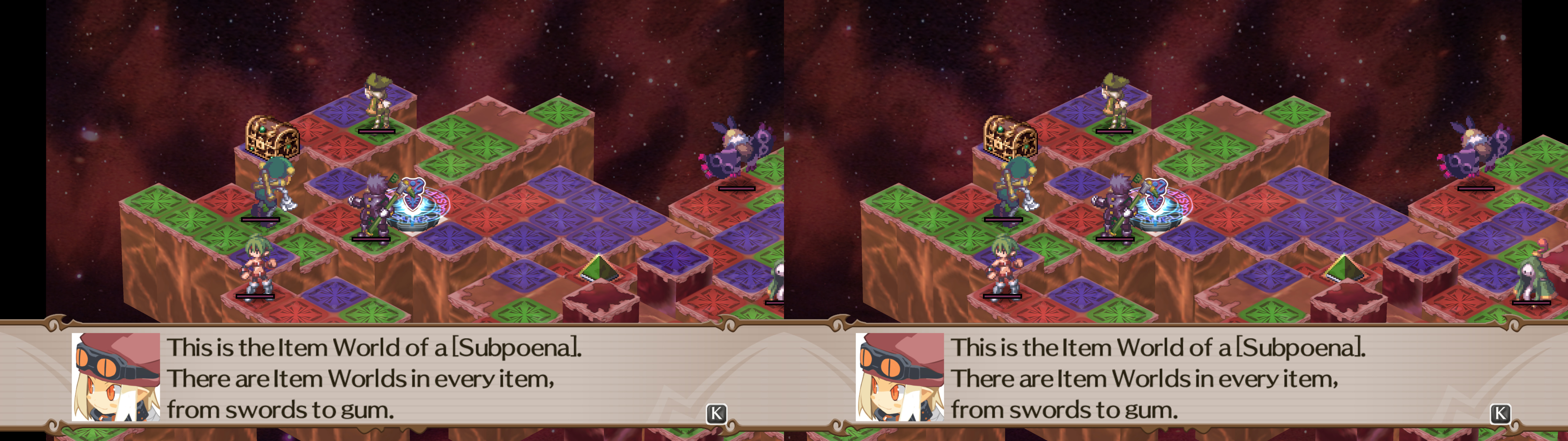
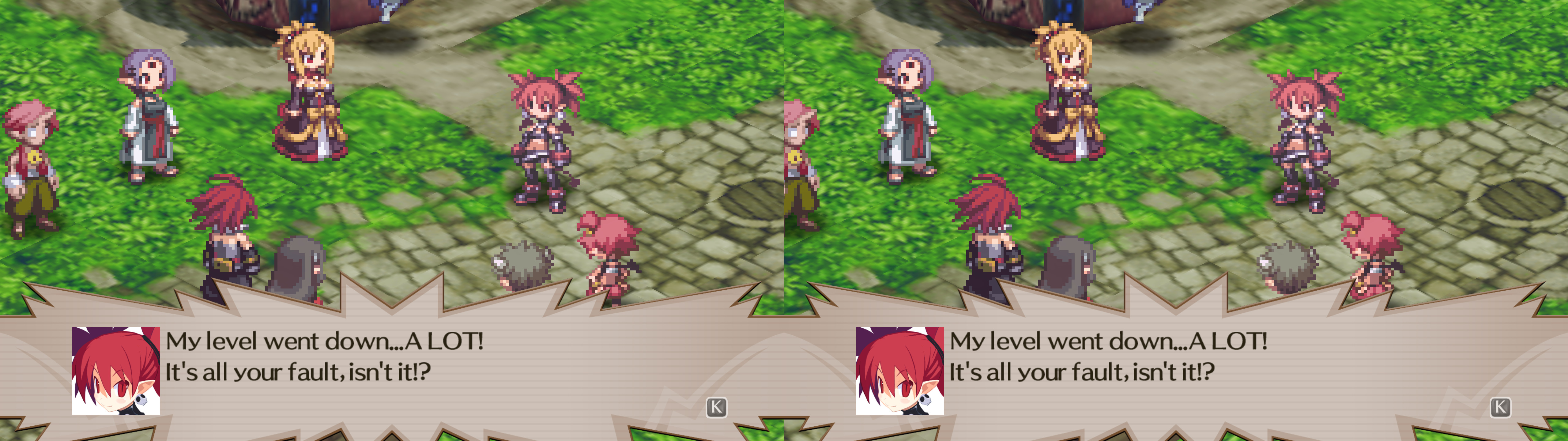
3D Vision fix for Disgaea 2 PC. This fix was made using Helifax's OpenGL wrapper and this game has a 60fps cap, meaning that the amount of fps per eye that you will get is 30 (each original frame goes only to one eye).


Fixed
- Stereoized graphics with the necessary custom formula.
- Backgrounds put at almost full depth (with low convergence scaling).


Installation
- First run the game at least once to configure it in fullscreen mode and all the other options you want.
- Download this file and extract its contents in the "Disgaea 2 PC" folder, where "disgaea2.exe" is.
- Modify the "disgaea2.exe" properties to always run as administrator. This is needed to make the default convergence value work.
- Check "3DVisionWrapper.ini". It's configured for 3D Vision monitors by default, but you can change "AlternativeView_Mode" to other values to use SBS or TAB formats.
- Run the game.

Extra note: to hide the top right information window you will probably need to hold the "Pause" key for a few seconds.


Hotkeys (numbers aren't from the numpad)
- u: toggle that gives more depth to the usual hub and battle maps. High setting. It may make some special attacks have too much separation. I recommend playing with this or the medium setting. This makes you need more convergence.
o: toggle that gives more depth to the usual hub and battle maps. Medium setting, not so extreme as the previous hotkey. It may make some special attacks have too much separation. I recommend playing with this or the high setting. This makes you need more convergence.
p: toggle for normal depth formula. Not much needed since the previous ones are toggles, but it can help you confirm in what setting you are.
l: high convergence toggle (the value is 2). The default value is 1. Keep in mind that using this toggle will block the normal convergence increase/decrease keys.


If you liked the fix and want to contribute for more future fixes, you can donate to this PayPal account: masterotakusuko@gmail.com

Comments

Popular Posts