Pinned Post

Devil May Cry 5

3D Vision and geo-11 fix for Devil May Cry 5. Many thanks to everyone that helped with testing, fixing and counseling (Helifax, DarkStarSword, Schwing, Kaimasta, etc). Update (2023-02-14) : reenabled a fix that I disabled by accident. Fixed one shader related to interlaced mode. Update (2023-02-12) : added geo-11 fix. Fixed TAA (including the temporal part of reflections), motion blur and interlaced mode in a more proper way. Fixed volumetric lighting clipping. Configured autoconvergence. HUD adjustments. Fixed some other minor problems. Stereoized vignette (if you enable the effect). Update (2022-01-11) : fixed TAA and interlaced mode, fixed lens flares, improved radial blur, stereoized more specular reflections, optimized regexes, put the clipping area of volumetric lighting to full depth (especially helps cutscenes), fixed more haloing problems, and fixed some fog related to volumetric lighting. Update (2019-12-21) : fixed volumetric lighting. Some glass now has realistic depth for ...
World of Warcraft Burning Crusade Classic


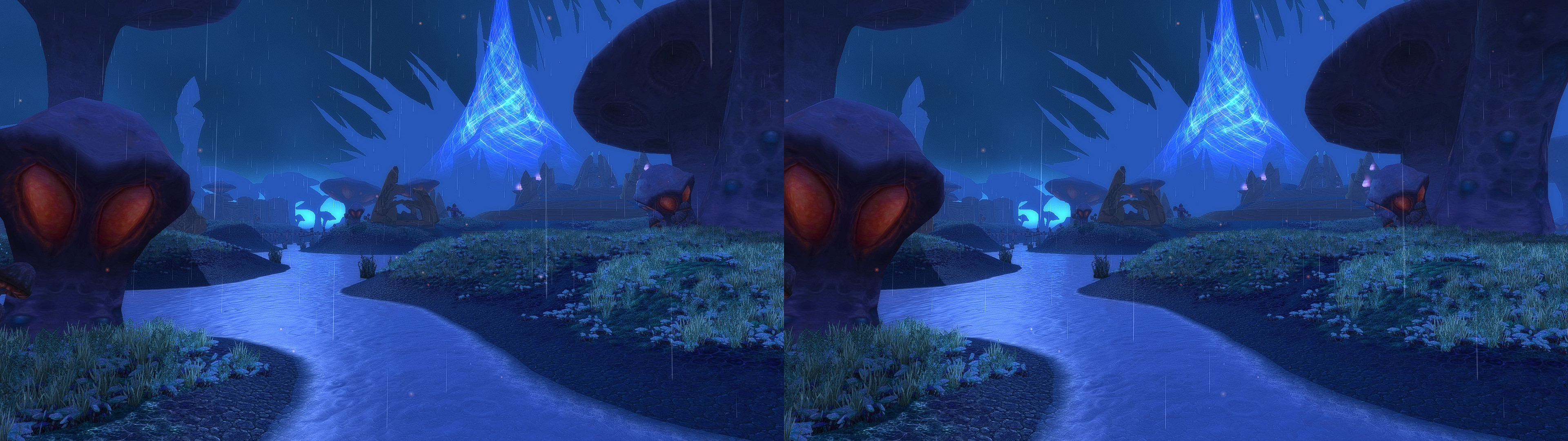
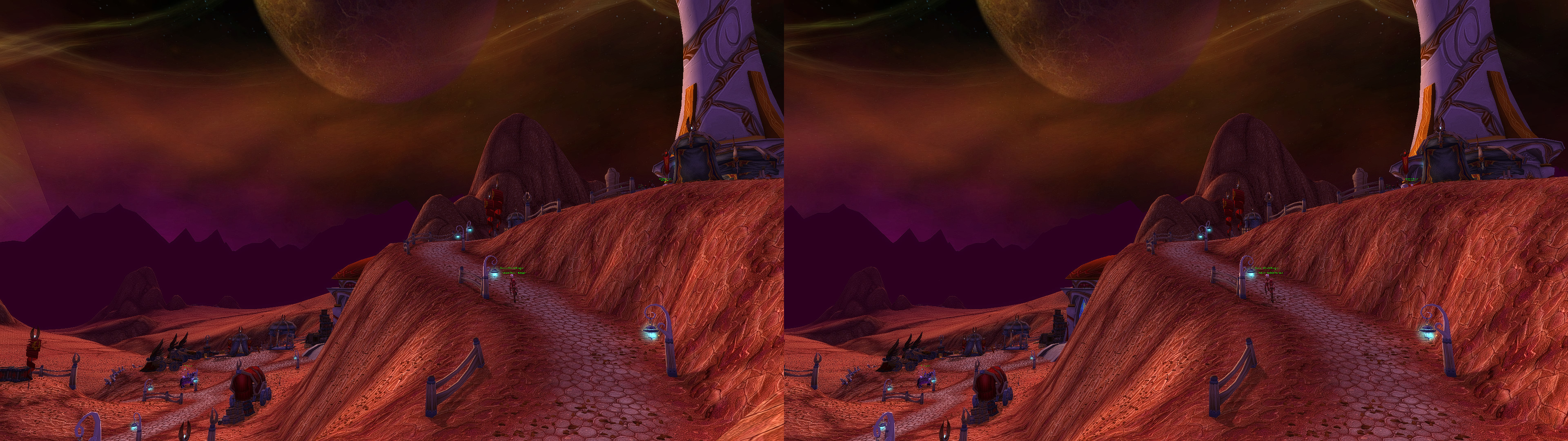
3D Vision fix for WoW Burning Crusade Classic (Windows 10 only). Fixed by Kai, and I'm only making the blog post for it. 


Required Settings

Launch the game and set the following options before installing the fix:

  • Graphics -> Vertical Sync: Enabled
  • Advanced -> Triple Buffering: Enabled
  • Advanced -> Graphics API: DirectX 11 Legacy


Log on a character and enter this in chat to enable the stereo software mouse cursor:

/console hardwarecursor 0


These options are also required but they can be changed after installing the fix:

  • Liquid Detail: Low or Ultra
  • Sunshafts: Disabled or High
  • SSAO: Enabled


Installation

  • Download the fix here.
  • Copy the contents of the "Fix" folder to your Burning Crusade Classic install path ( e.g. C:\Games\World of Warcraft\_classic_ ).


Hotkeys

  • F1: Cycle convergence values.
  • F2: Toggle screen depth for HUD and cursor.
  • Numpad7/8: Hold keys to adjust overall HUD depth when using Health Bars.
  • Numpad4/5: Hold keys to adjust Minimap depth (required in certain areas when using a custom HUD depth).
  • Numpad1/2: Hold keys to adjust Floating Combat Damage depth when not using Health Bars (works only after resetting the HUD to screen depth).
  • F10: Save your custom HUD depth values after tweaking them with the hotkeys above.
  • CTRL+ALT+F10: Reset HUD to screen depth.
  • CTRL: Hold key to keep cursor at screen depth when interacting with 2D HUD elements.


Notes

  • This fix comes with a modified 3Dmigoto d3d11.dll that can trigger 3D in most borderless DX11 games on Windows 10 and possibly Windows 8 (necessary for this game as it lacks exclusive fullscreen mode).
  • When changing the overall HUD depth to tweak enemy Health Bars, make sure to remove the broken Minimap borders and Chat buttons with addons like Prat or SexyMap. Some other broken HUD elements may not be fixed with any addon unfortunately.

Comments

Popular Posts