3D Vision and geo-11 fix for Dark Souls II: Scholar of the First Sin.
Update (2022-11-12): geo-11 updated to build v0.6.78. Autoconvergence improvements. Dynamic depth for crosshair, lock-on, and enemy life bars.
Update (2022-06-22): geo-11 fix added.
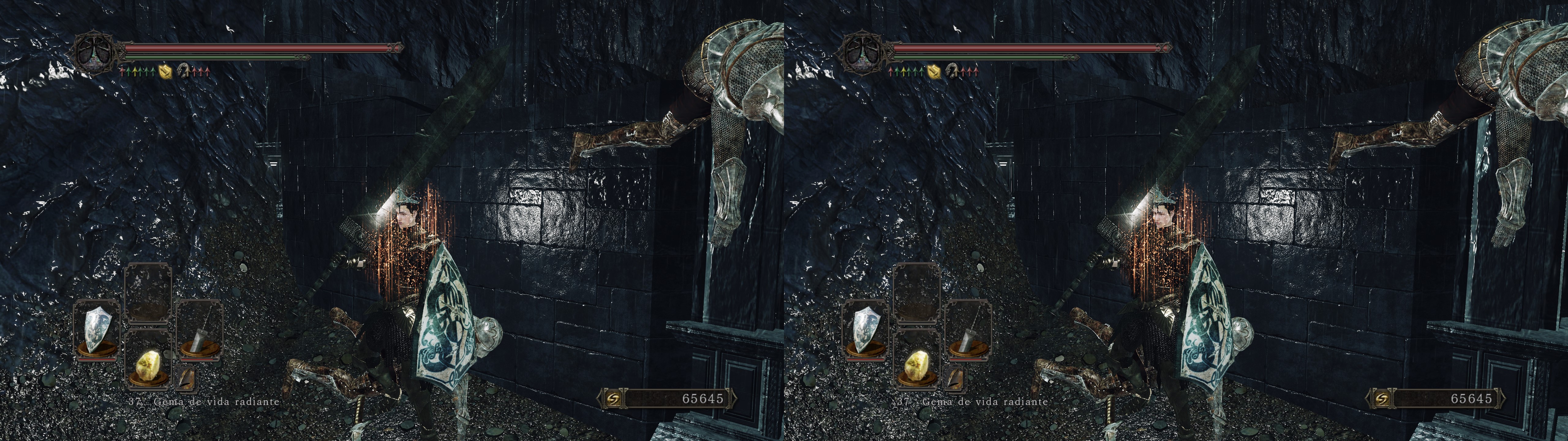
Fixed- Shadows.
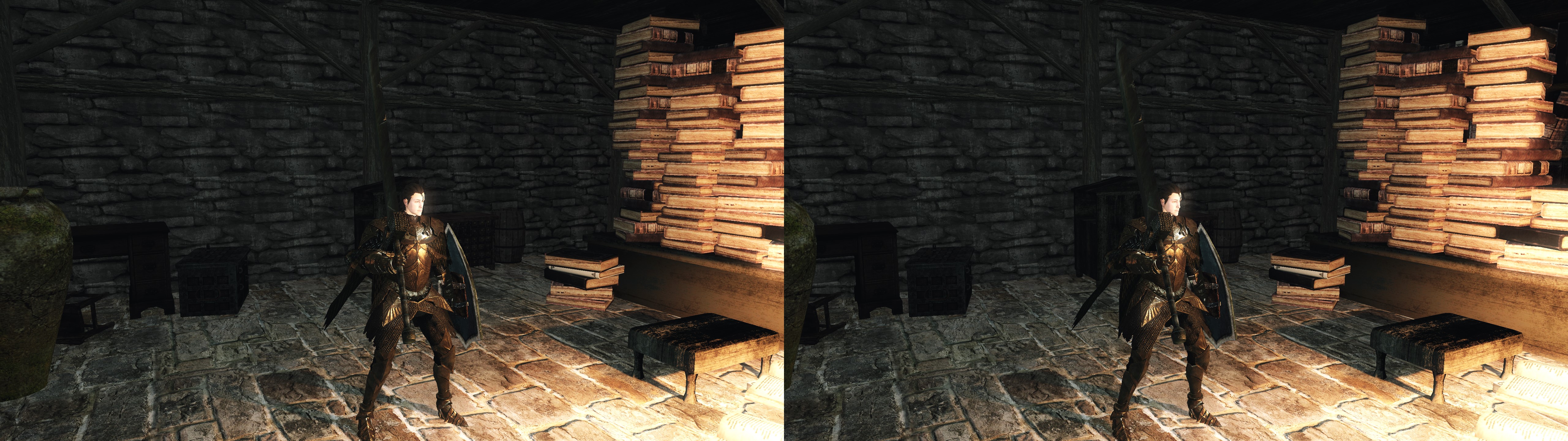
- Lighting.
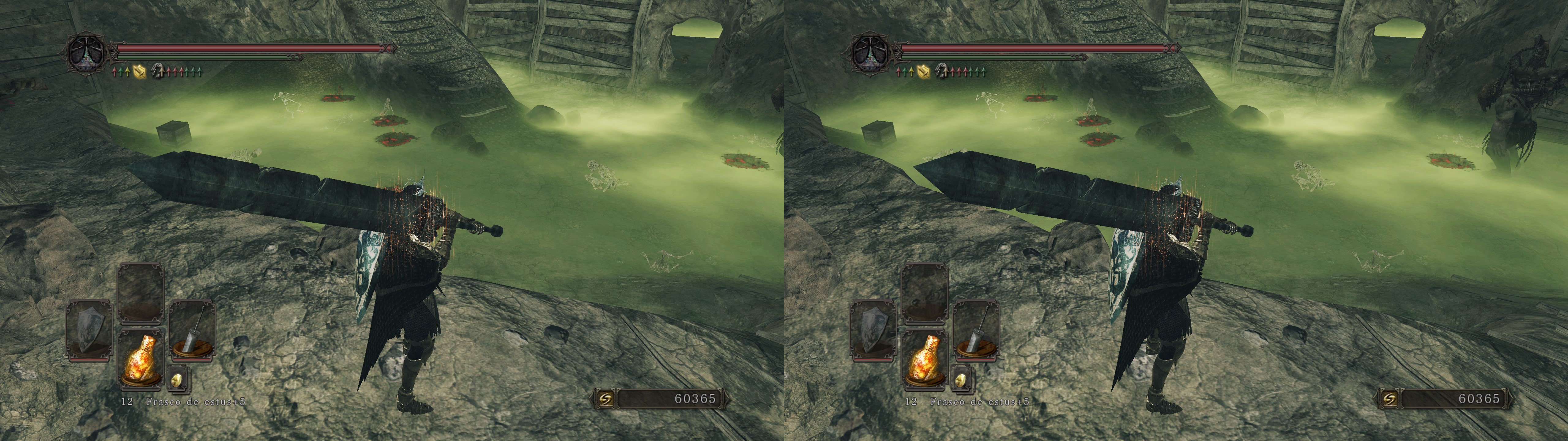
- Fog.
- HUD depth presets and clipping fix.
- Haloing issues.
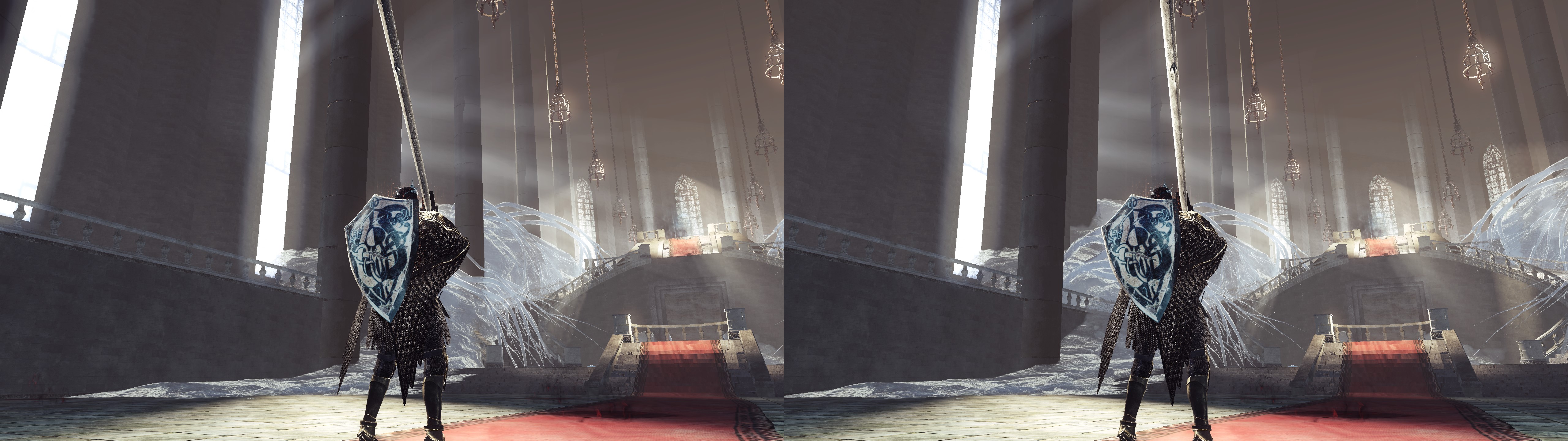
- Light Shafts.
- Parallax occlusion mapping.
Installation instructions- geo-11, recommended, using build v0.6.78: unzip this file into the "Dark Souls II Scholar of the First Sin\Game" folder, where "DarkSoulsII.exe" is. Remember to edit "d3dxdm.ini" to change your "direct_mode" to the output you need.
- 3D Vision (outdated): unzip this file into the "Dark Souls II Scholar of the First Sin\Game" folder, where "DarkSoulsII.exe" is.
- Launch the game. For 3D Vision, you need to be in fullscreen mode.
Hotkeys
- F1: hotkey for multiple convergence presets (0, 0.5, 1, 1.5, 2, 2.5, 3, 3.5)
- F2: HUD depth presets (0%, 25%, 40%, 50%, 60%, 80%, 100%). 25% by default.
- F3: bloom toggle (bloom is enabled by default).
- F6: weapon attack blur toggle (on by default).
- F8: FXAA edge detection presets, if the setting is enabled (0.2, 0.05, 0.1, 0.15). 0.15 by default.
Version History:
2.1: masterotaku updated the following:
- Autoconvergence improvements.
- Dynamic depth for crosshair, lock-on, and enemy life bars.
2.0: masterotaku updated the following:
- F1 hotkey for multiple convergence presets.
- All lighting clipping fixed.
- Lighting fixed in a completely accurate way, with realistic specular reflections. Just like in my recent RE7/RE2/DMC5 fixes. No more inaccuracies.
- Light shafts fixed, instead of disabled.
- Green fog accurately fixed, instead of the previous approximate fix.
- Removed useless shaders from the ShaderFixes folder.
1.8: masterotaku updated to 3DMigoto 1.2.50
1.7: masterotaku made the following updates:
- Importing a Nvidia profile isn't needed anymore thanks to the 3Dmigoto 1.2.49 version.
- Disabled the convergence 1 and convergence 0 hotkeys (F6 and F7).
- Did a "more or less" fix for the green fog. It doesn't look bad now.
- Fixed shadows and lighting from the "Shadows Low" setting, mostly. I had to disable certain shadows that I didn't know how to fix. Everyone should use shadows on High anyway.
1.5: masterotaku fixed lighting and shadows and added several controls for settings.
1.2: masterotaku added a fix for the fire distortion and improved lighting more as well as adding a HUD depth toggle.
1.1: Improved lighting and shadows thanks to masterotaku!
1.0: Initial Release


Comments
Post a Comment